Blog
Why Traditional Screen Recordings Fail for Code Walkthroughs (And What to Do Instead)

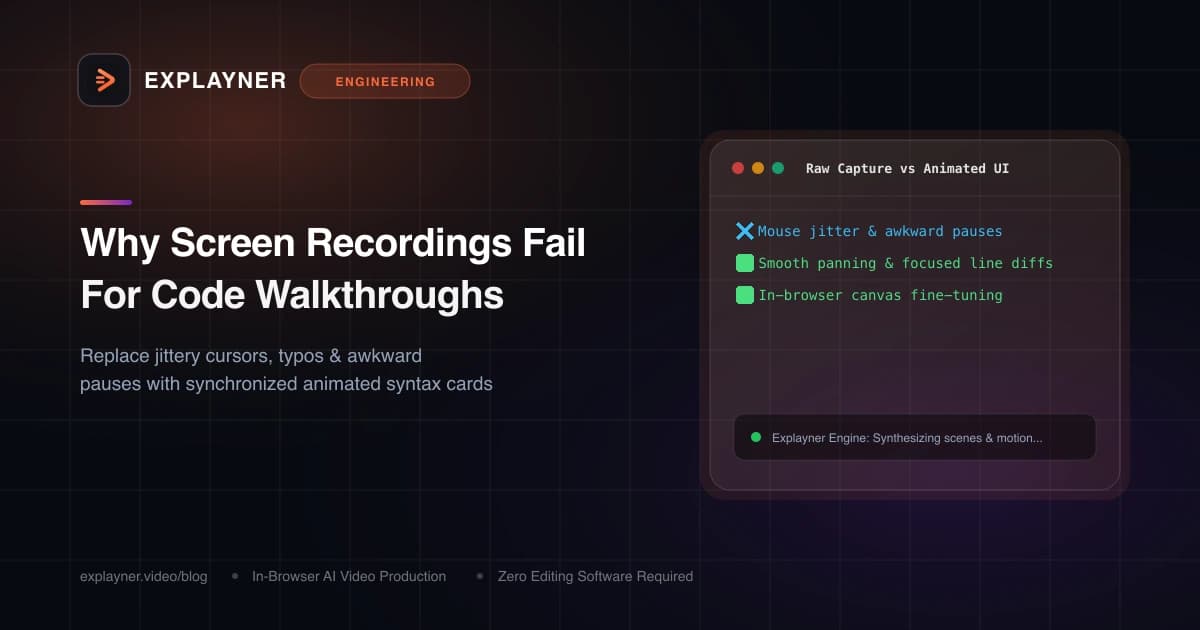
The Agony of the 14-Take Screen Recording
Every developer who has tried to record a coding walkthrough knows this feeling: You start recording your screen. You type out a clean function. Then, on line 12, your finger slips on a semicolon. You backspace, lose your train of thought, clear your throat, and restart the recording.
Fourteen takes and 90 minutes later, you end up with a messy, bloated video file. You have your browser tabs cluttering the top bar, your Slack notification badge blinking in the tray, and your mouse cursor randomly darting across the screen like a caffeinated fly.
Screen recording feels like the natural way to demonstrate code because it's what we have always done. But for the viewer, raw screen captures are visually exhausting and technically inefficient.
The 4 Fatal Flaws of Raw Screen Captures
When you analyze viewer drop-off on technical YouTube videos, coding bootcamps, and internal company Loom recordings, the same friction points emerge over and over:
- Tiny, unreadable font scaling: What looks great on your 32-inch 4K monitor becomes an illegible blur when a viewer watches on a laptop or smartphone.
- Visual clutter and distraction: Browser bookmarks, open IDE tabs, desktop wallpapers, and terminal histories compete for the viewer's focal attention.
- Awkward pacing and dead pauses: Waiting for
npm installto finish or watching the presenter correct a typo kills viewer engagement within the first 15 seconds. - Zero editability: If an API route changes tomorrow, your entire 20-minute screen recording is obsolete. You have to re-record the whole video from scratch.
The Cognitive Strain of Screen Clutter
When code walkthroughs contain peripheral IDE clutter, the viewer's brain spends up to 35% of its cognitive processing power filtering out irrelevant visual noise instead of absorbing your logic.The Superior Alternative: Kinetic UI Cards and Focused Syntax
Instead of capturing your whole desktop, the modern standard is to present code as clean, animated UI cards set against a minimalist dark or light background.
Think about how the best technical conference presentations look: they don't show an entire IDE window with 40 toolbars. They show a focused 6-line code snippet with crystal-clear syntax highlighting, smooth camera pans, and bold callouts that guide the eye exactly where it needs to go.
- Isolate the signal from the noise: Show only the lines of code that matter for the current concept, with automatic syntax coloring.
- Synchronize visuals to speech: When your voiceover mentions 'the JWT verification middleware', that exact block animates into focus.
- Flexible talking-head layouts: Rather than a static circular webcam blocking line 42 of your code, use smart multi-position layouts (split-screen, corner, or side banner) that adapt to the scene.
Create with Explayner
Turn your idea into a ready-to-post video.
Upload audio, a talking-head clip, or a simple prompt and start creating in your browser.
How Explayner Solves the Re-Recording Nightmare
Explayner was built specifically to decouple your voice from your visual presentation. You don't have to perform live while typing without errors.
You simply record your spoken audio or upload a voice memo. Explayner's engine plans the scene flow, generates formatted code cards, applies the typography, and synchronizes caption timestamps automatically.
Best of all, when an API endpoint changes, you don't re-record. You simply open Explayner's canvas editor, update the string on the code card, and click Apply Re-render. In five seconds, your video is updated.
export async function verifySession(token: string) {
  // Clean, focused snippet without IDE toolbars
  const payload = await jwt.verify(token, process.env.SECRET!);
  if (!payload.userId) throw new UnauthorizedError();
  return payload;
}
Final Takeaway
Stop torturing yourself with endless retakes on OBS or QuickTime. Your time is far too valuable to spend re-recording a screen capture because of a single typo.
Switch to animated UI cards and synchronized syntax highlighting. Your tutorials will look like they were built by a professional animation studio, and your viewers will actually watch until the end.
Create with Explayner
Turn your idea into a ready-to-post video.
Upload audio, a talking-head clip, or a simple prompt and start creating in your browser.